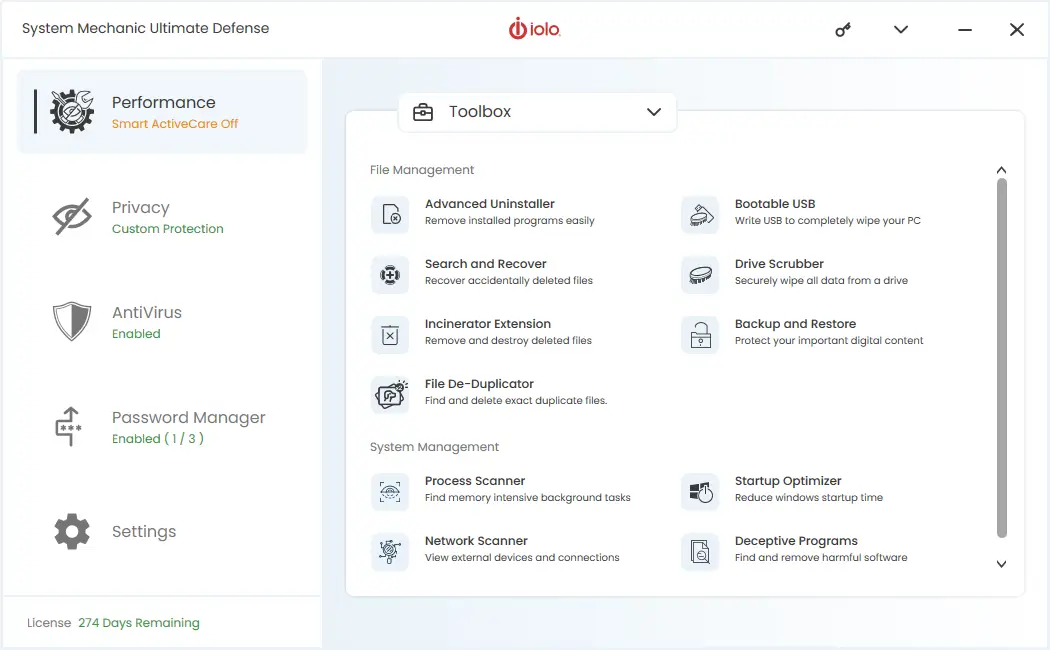
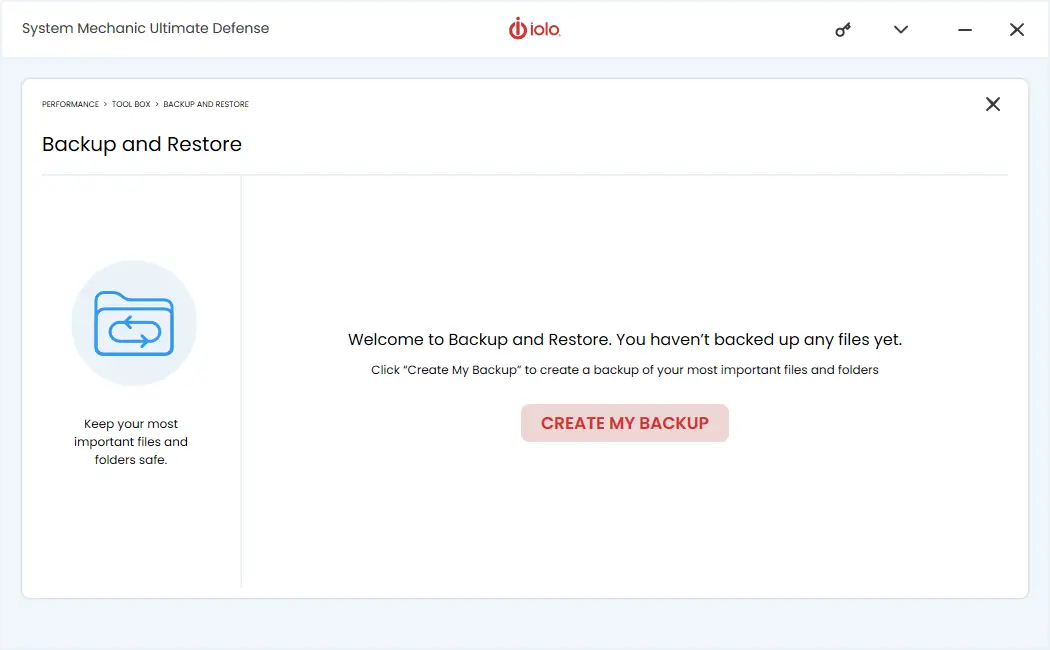
Yes — System Mechanic includes a Backup and Restore feature in the System Mechanic Pro and System Mechanic Ultimate Defense editions.
This feature is designed to help you protect important personal files by creating backups of content stored in your Windows Media folders (such as photos, videos, and music). You can select specific files or subfolders individually, giving you flexibility over what gets backed up.
How Backup and Restore works
Using Backup and Restore is simple and only takes a few steps:
- Open the Backup and Restore tool from the Toolbox
- Select the files or folders you want to back up
- Complete the backup process
You can also add more files to an existing backup at any time, making it easy to keep your backups up to date.
Where are backups saved?
Backups are automatically saved to your Windows Documents folder. These default locations cannot be changed within the tool. However, you can manually copy your backup files to another location—such as an external drive or cloud storage—for additional safety.
Managing your backups
The Backup and Restore dashboard allows you to:
- View existing backups
- Add new files to them
- Delete backups you no longer need
Important notes
- Backup and Restore is not available in the free or standard System Mechanic version
- It focuses specifically on files within Windows Media folders
- For broader system or full-drive backups, a dedicated backup solution may be required