Yes. System Mechanic includes a maintenance feature called ActiveCare that can automatically run cleanup, repair, and optimization tasks on your PC.
✅ What ActiveCare does
- ActiveCare monitors your system’s performance and resource usage while your PC is on but idle.
- When ActiveCare detects issues or performance thresholds you configured — such as low memory, accumulated junk files, or fragmented drives — it triggers the appropriate maintenance tools automatically, without you having to run them manually.
- Examples: cleaning browser and system junk files, repairing registry issues, defragmenting hard drives, removing unnecessary startup programs, and more.
🛠️ How to configure automatic tasks
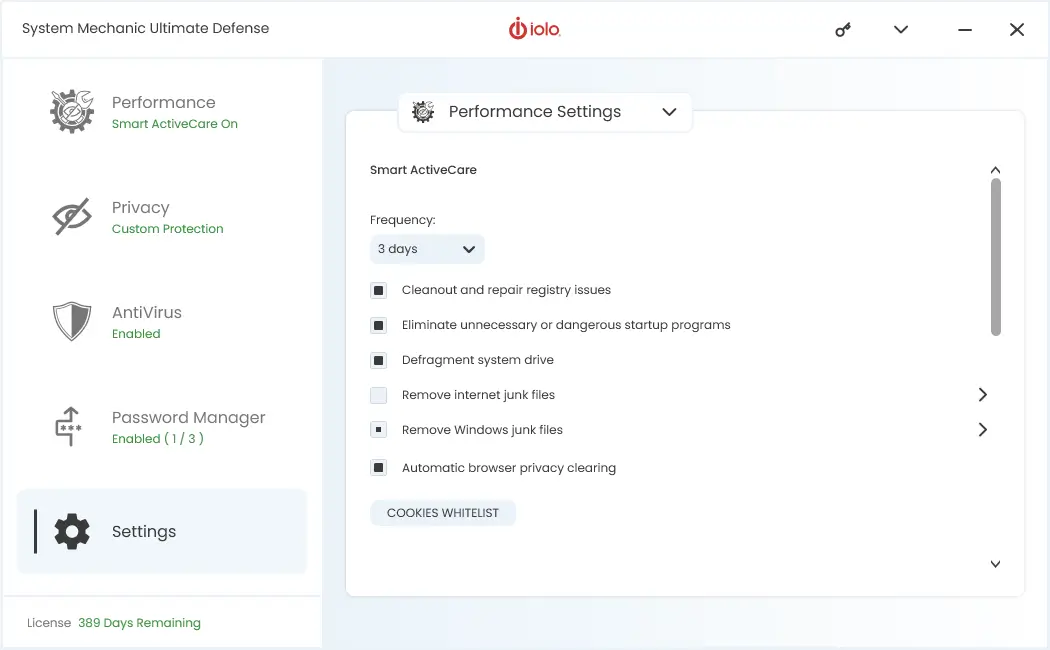
- Open System Mechanic and go to Settings → Performance Settings (or the Performance/ActiveCare tab). See the image below.
- From there, you can choose which tasks you want ActiveCare to run automatically — e.g., registry fixes, junk file cleanup, drive defragmentation, internet cleanup, startup optimization, etc. Toggle each task on or off.
- Under scheduling options (e.g., in Performance Settings or Frequency settings), you can specify how often System Mechanic should check and run maintenance — from every few hours to once a month (or disable automatic scheduling).
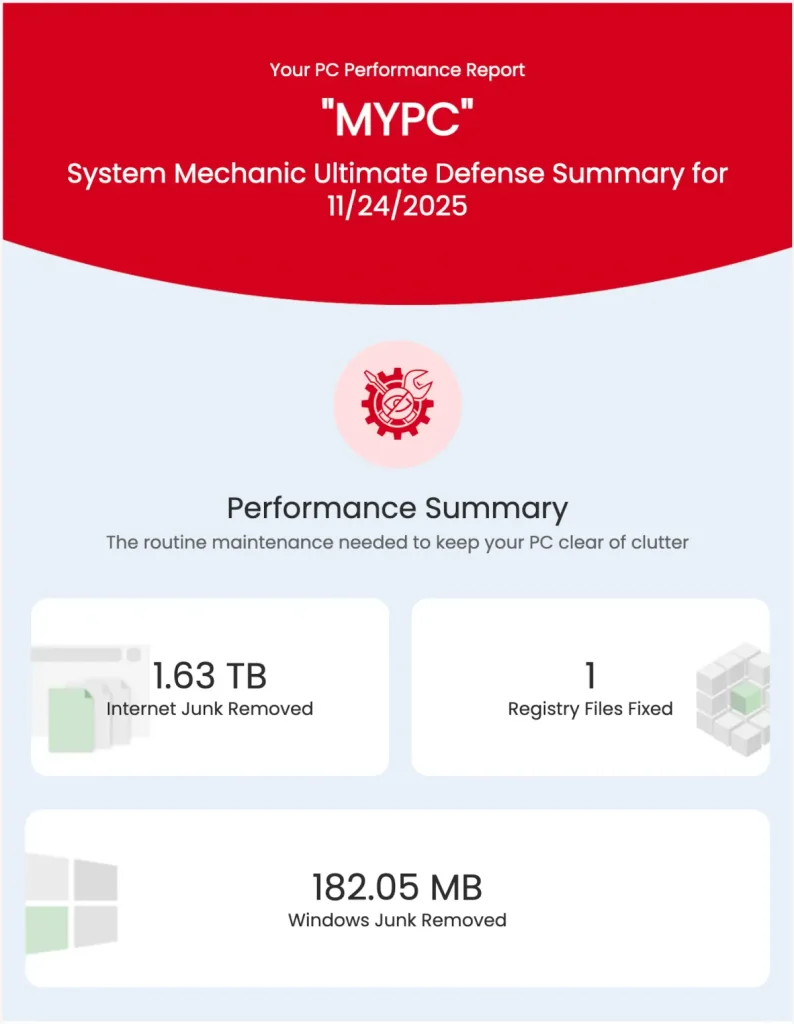
- Optional: You can enable email reports in ActiveCare’s settings so System Mechanic will send you periodic summaries of what was fixed or optimized. See the second image below.
⚠️ Important notes
- ActiveCare does not schedule individual tools for fixed times (like “run defragmenter every Sunday at 3 am”). Instead, it runs tools based on performance triggers and when the PC is idle.
- If you disable automatic scheduling (e.g., set frequency to “Never”), then tools will only run when you manually initiate them.
- Automatic maintenance aims to be non-intrusive: all background tasks only run when the PC is idle, so they should not interfere with your work.