Is your Windows 11 computer running slow, freezing, or taking too long to start? Discover what's causing the slowdown and how to improve your PC's performance without unnecessary upgrades.
Windows 11 offers a modern interface, improved security, and plenty of useful features. However, even a relatively new computer can become sluggish over time. Applications may take longer to open, switching between programs can feel frustrating, and simple tasks may suddenly require more patience than they should.
The good news is that a slow Windows 11 PC doesn't always need new hardware or a complete system reset. Many performance issues come from software settings, unnecessary background processes, insufficient storage space, or other problems you can fix yourself.
Why Is Your Windows 11 Computer Running Slow?
Windows 11 relies on several system resources to keep your computer responsive. Your processor handles instructions, RAM stores information that active programs need, and your storage drive loads applications and files. When one of these components struggles to keep up, the entire computer may feel slower.
Sometimes the problem appears gradually. You install new applications, accumulate temporary files, and allow more programs to launch when Windows starts. Eventually, your computer spends too much time managing background activity instead of handling the tasks you actually want to perform.
Other slowdowns happen suddenly, often after a Windows update, software installation, or driver change. These problems may require a different troubleshooting approach.
Before changing Windows settings, identify what's slowing down your computer. The following sections explain common causes and practical solutions, starting with simple fixes.
Common Causes of Slow Windows 11 Performance
Several issues can cause Windows 11 to run slowly. Some affect startup speed, while others reduce performance throughout the day.
- Too many startup applications: Programs that launch automatically consume memory and processing power before you begin working.
- Insufficient RAM: Running several demanding applications can exhaust available memory and force Windows to rely more heavily on storage.
- Low disk space: A nearly full system drive can interfere with temporary files, updates, and other operations.
- Excessive background activity: Software updates, synchronization, indexing, and other processes can compete for resources.
- Outdated or problematic drivers: Driver issues can affect graphics performance, storage access, and system stability.
- Malware or unwanted software: Suspicious applications may consume resources or interfere with normal system activity.
- Hardware limitations: Older processors, mechanical hard drives, overheating, and limited memory can restrict performance.
Many computers experience more than one of these problems at the same time. For a broader explanation, see our guide to the common causes of PC slowdowns.
Check What's Slowing Down Your Windows 11 PC
Before trying different optimization methods, use Windows 11 Task Manager to identify potential performance bottlenecks.
Press Ctrl + Shift + Esc to open Task Manager. Select the Processes tab and review the CPU, Memory, and Disk columns. Click a column heading to sort processes by resource usage.
If an unfamiliar process consistently uses significant resources, investigate what it does before attempting to close it. Some Windows processes are essential, and ending them may cause temporary instability.
Identify High CPU, Memory, or Disk Usage
| What You Notice | Possible Cause | Where to Start |
|---|---|---|
| Windows takes too long to start | Too many startup applications | Review startup programs |
| High CPU usage | Demanding software or background activity | Identify resource-heavy processes |
| High memory usage | Too many applications or insufficient RAM | Close unused apps and browser tabs |
| Disk usage stays near 100% | Heavy disk activity, memory pressure, or storage problems | Check storage activity and drive health |
| PC slows down after an update | Background update tasks or compatibility problems | Check update history and drivers |
| Laptop slows down on battery | Power-saving settings | Review Windows power mode |
Tip: Brief spikes in CPU, memory, or disk activity are normal. Look for consistently high usage that coincides with noticeable slowdowns.
If your computer becomes unresponsive only when running a particular application, that program may be the source of the problem. Check its updates and system requirements before changing broader Windows settings.
1. Disable Unnecessary Startup Programs
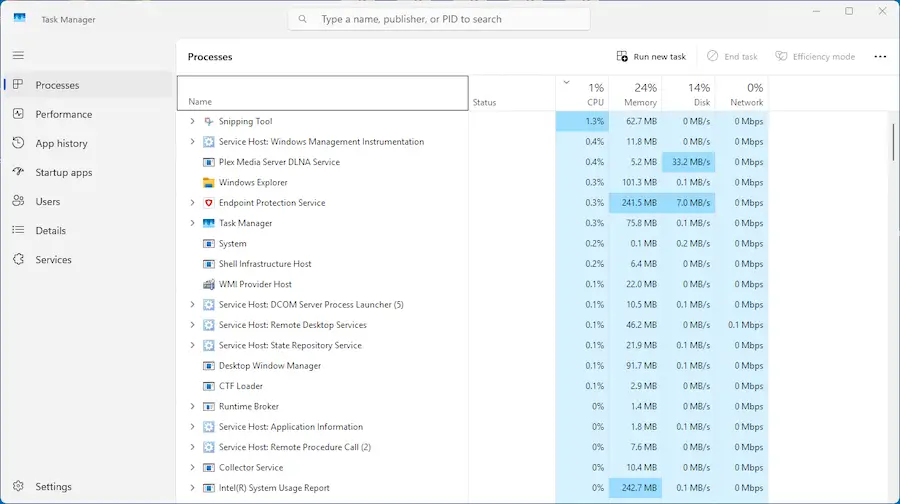
One of the easiest ways to speed up Windows 11 is to reduce the number of programs that start automatically.
Many applications add themselves to your startup list during installation. Cloud storage tools, chat programs, game launchers, and other utilities may run even when you don't need them.
Each startup application can increase boot time and consume resources after you sign in.
To manage startup applications:
- Press Ctrl + Shift + Esc to open Task Manager.
- Select Startup apps from the left menu.
- Review the applications and their startup impact.
- Right-click an unnecessary application and choose Disable.
- Restart your computer to evaluate the results.
Disabling a startup application doesn't uninstall it. You can still open the program whenever you need it.
Be selective. Avoid disabling security software, essential drivers, or applications your workplace requires.
For additional methods, read our guide to optimizing the Windows startup process.
2. Free Up Disk Space and Remove Unnecessary Files
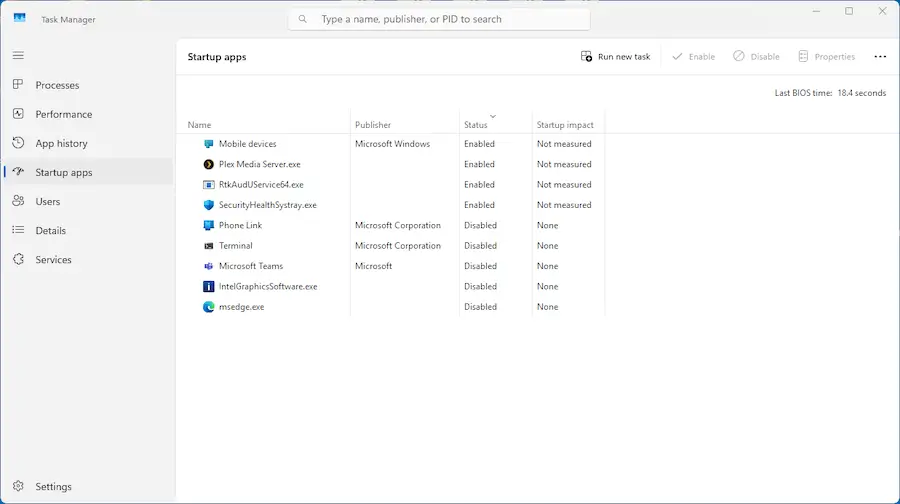
Windows 11 needs available storage for updates, temporary files, virtual memory, and everyday operations. When your system drive becomes nearly full, these activities may become less efficient.
Removing unnecessary files can help restore usable space and prevent storage-related problems.
Use Storage Sense in Windows 11
Windows 11 includes Storage Sense, a built-in feature that helps remove unnecessary temporary files automatically.
- Open Settings.
- Navigate to System > Storage.
- Select Storage Sense.
- Review the cleanup settings and enable the feature.
- Run Storage Sense manually if you want to clean up eligible files immediately.
You can also open Settings > System > Storage > Temporary files to review additional cleanup options.
Important: Check the selected file categories before deleting anything. Pay particular attention to Downloads, Recycle Bin, and previous Windows installation files if they appear.
Uninstall Apps You No Longer Need
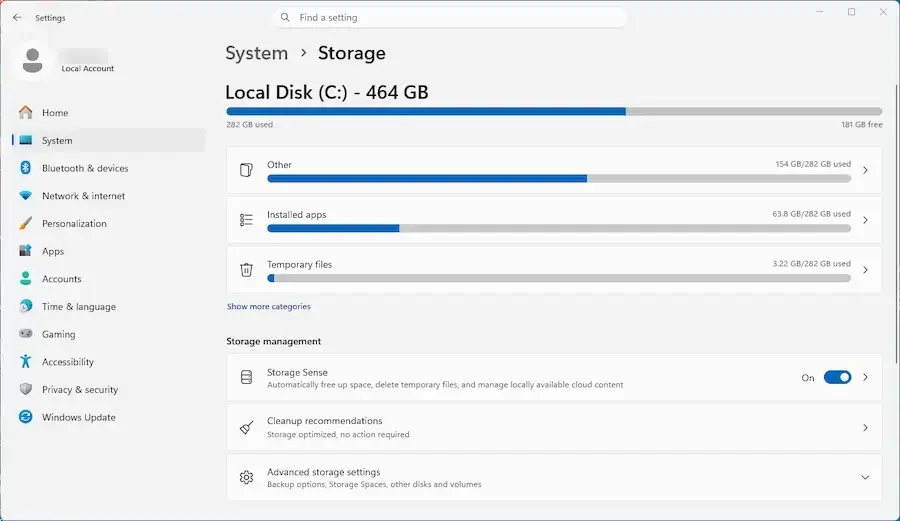
Unused software occupies storage and may add services or background processes.
Open Settings > Apps > Installed apps. Review the list, find programs you no longer use, and select Uninstall from the application's menu.
Avoid removing unfamiliar system components or drivers without checking their purpose.
Regular cleanup won't magically increase your processor's speed. However, it can reduce storage pressure and unnecessary background activity, helping Windows operate more efficiently.
3. Reduce Background Activity and Visual Effects
Windows 11 uses animations, transparency effects, and background processes to deliver a modern desktop experience. These features generally work well, but some can affect responsiveness on less powerful computers.
Start by closing applications and browser tabs you no longer need. Then review programs that continue running after you close their windows.
For applications that support background permission controls, open Settings > Apps > Installed apps, select the application's advanced options, and review its background permissions.
Not every desktop application offers these controls. You may need to adjust some programs through their own settings.
To reduce Windows visual effects:
- Open the Start menu and search for Adjust the appearance and performance of Windows.
- Open the matching Control Panel setting.
- Under Visual Effects, select Adjust for best performance.
- Alternatively, choose Custom and disable only the effects you don't need.
- Select Apply to save your changes.
Tip: Custom settings often provide a better balance between performance and appearance. You don't need to disable every animation to make Windows feel more responsive.
4. Update Windows 11 and Device Drivers
Software updates don't just introduce new features. They also fix bugs, address compatibility problems, and sometimes improve system performance.
Outdated graphics, chipset, network, or storage drivers can contribute to slowdowns and unexpected behavior.
To check for Windows updates:
- Open Settings > Windows Update.
- Select Check for updates.
- Install applicable updates.
- Restart your computer if Windows requests it.
You can also check Windows Update > Advanced options > Optional updates for available driver updates.
If a specific device continues causing problems, check the computer or component manufacturer's website for compatible drivers.
Only download drivers from trustworthy sources. Random driver-update websites may provide outdated, incompatible, or unwanted software.
Keep in mind that updates aren't guaranteed to improve performance. Sometimes an update introduces a compatibility issue, which requires further investigation.
5. Fix Windows 11 Running Slow After an Update
Did your computer suddenly become sluggish after installing a Windows 11 update? You're not necessarily imagining the difference.
Major updates can trigger additional background activity, including file indexing, system maintenance, and application updates. This may temporarily increase CPU, memory, or disk usage.
However, persistent performance problems can also result from software conflicts, faulty drivers, or update-related bugs.
If Windows 11 runs slowly after an update, try these steps:
- Restart your computer. A full restart can finish pending changes and clear temporary problems.
- Check Task Manager. Look for processes using excessive resources.
- Review update history. Open Settings > Windows Update > Update history to identify recently installed updates.
- Check for newer updates. Microsoft or hardware manufacturers may have released a fix.
- Investigate driver problems. Pay attention to any device that started behaving differently after the update.
If you can clearly link the slowdown to a specific update, review Windows recovery options. Some updates can be uninstalled, although removing security updates without a good reason introduces additional risks.
Don't disable Windows Update permanently to improve performance. Keeping your operating system protected remains important.
6. Adjust Windows 11 Power Settings
Windows 11 includes power modes that balance performance against energy consumption. On laptops, these settings can make a noticeable difference.
For example, a power-saving configuration may limit performance to extend battery life. This is useful when traveling but less helpful during demanding tasks.
To review your power settings:
- Open Settings > System > Power & battery. Some desktops display a Power section instead.
- Find Power mode.
- Choose Balanced or Best performance, depending on your needs.
Best performance may improve responsiveness during demanding workloads, but it also increases power consumption. Your laptop may run warmer and use its battery more quickly.
For everyday use, Balanced is often the more practical choice. Availability and behavior may vary by device manufacturer.
7. Check for Malware and Repair Windows System Files
Malware, unwanted programs, and damaged Windows files can all affect performance. Some problems create obvious symptoms, while others cause intermittent freezes or unexplained resource usage.
If your computer remains slow after basic optimization, check for security threats and system file corruption.
Scan for Malware
Windows 11 includes Microsoft Defender Antivirus through Windows Security.
- Open Settings > Privacy & security > Windows Security.
- Select Virus & threat protection.
- Choose Quick scan.
- If problems persist or you suspect an infection, consider a more thorough scan.
Keep your antivirus protection enabled and updated. Disabling security features to make Windows faster can expose your PC to greater risks.
Repair Damaged Windows System Files
Windows also includes repair utilities that can identify and replace damaged system files.
To use them, open Command Prompt as administrator and run the following command:
DISM.exe /Online /Cleanup-Image /RestoreHealthAllow DISM to finish. Then run:
sfc /scannowSystem File Checker examines protected Windows files and attempts to repair corruption. Don't close Command Prompt while either operation is running.
These tools can help when damaged system files contribute to instability. However, they won't resolve every performance issue, especially those caused by insufficient hardware resources.
8. Check Whether Your Hardware Is Holding Windows 11 Back
Software optimization can make a meaningful difference, but it has limits. If your computer consistently struggles with everyday tasks, hardware may be part of the problem.
RAM is one common limitation. Windows 11 can run on systems with modest memory, but heavy multitasking, modern browsers, and demanding applications may require more.
Storage technology also matters. A traditional hard disk drive (HDD) generally accesses data much more slowly than a solid-state drive (SSD). Replacing an HDD with an SSD can make Windows startup, application loading, and file access noticeably faster.
If you're considering an upgrade, read our HDD vs SSD comparison to understand the differences.
Other hardware-related problems include:
- Overheating: Excessive heat can cause the processor to reduce its operating speed.
- Aging components: Older processors may struggle with demanding modern applications.
- Storage failures: A failing drive can cause long delays, freezes, and errors.
- Insufficient memory: Frequent swapping between RAM and storage can reduce responsiveness.
If you suspect a failing drive, back up important files immediately before running further diagnostics. Performance optimization cannot repair physically damaged storage hardware.
Can System Mechanic Help Speed Up Windows 11?
Windows 11 includes several useful tools for improving PC performance. However, managing startup programs, cleaning unnecessary files, checking system settings, and repeating maintenance tasks can take time.
For users who prefer a more automated approach, iolo System Mechanic provides performance optimization and maintenance tools designed to simplify common PC upkeep tasks.
System Mechanic can help identify and remove unnecessary system clutter, manage certain startup-related issues, and optimize supported Windows settings. It combines multiple maintenance functions in one interface, reducing the need to work through separate utilities.
One of its features, Smart ActiveCare, extends automated maintenance by using intelligent scheduling that adapts to how you use your computer. It can perform supported maintenance tasks during suitable idle periods, helping reduce interruptions while you work or play.
You can learn more about this feature in our guide to Smart ActiveCare and automated PC maintenance.
Keep in mind: System Mechanic cannot fix failing hardware, replace insufficient RAM, or guarantee that every slowdown will disappear. It works best as part of a broader approach to maintaining PC performance.
Frequently Asked Questions About Slow Windows 11 PCs
Why Is Windows 11 Suddenly So Slow?
A sudden slowdown may result from a recent update, a new application, excessive background activity, malware, or a hardware problem. Open Task Manager to identify unusual CPU, memory, or disk usage. If the issue began after a recent change, investigate that change first.
How Can I Speed Up Windows 11 Without Upgrading Hardware?
Start by disabling unnecessary startup applications, removing unused software, and freeing up disk space. You can also reduce background activity, adjust visual effects, update drivers, and check for malware. These changes can improve responsiveness without requiring new components.
Is 8GB of RAM Enough for Windows 11?
For basic browsing, email, and office applications, 8GB of RAM can be sufficient. However, demanding software, multiple browser tabs, and heavy multitasking may exhaust available memory. If Task Manager regularly shows high memory usage, upgrading RAM may improve performance.
Why Is Windows 11 Slow After an Update?
Windows may perform additional background tasks after an update, temporarily affecting performance. A driver conflict or update-related bug can also cause persistent slowdowns. Restart your PC, check Task Manager, and review Windows Update history if the problem continues.
Should I Reset Windows 11 If It's Still Slow?
Resetting Windows can help resolve persistent software problems, but it should usually be a last resort. First, try targeted troubleshooting and system repairs. If you decide to reset Windows, back up important files and review the reset options carefully. Some options remove installed applications, settings, or personal data.
Keep Windows 11 Running Smoothly Over Time
Fixing a slow Windows 11 computer is only part of the process. Regular maintenance can help prevent many common performance problems from returning.
Keep Windows and important drivers updated, review startup applications occasionally, and remove software you no longer use. Monitor available storage space, watch for unusual resource usage, and make regular backups of important files.
Pay attention to changes in your PC's behavior. A computer that suddenly becomes much slower may be experiencing an issue that requires investigation rather than routine cleanup.
For users who want to simplify ongoing maintenance, tools like System Mechanic and its Smart ActiveCare feature can help automate supported optimization tasks.
With the right combination of troubleshooting, sensible settings, and regular maintenance, you can improve Windows 11 performance and keep your computer responsive for longer.